In this tutorial you will learn how to setup Wifi for a Raspberry Pi even when you do not have access to a monitor .
You will need:
- Raspberry Pi
- Sd card
- Sd card reader (If you do not have it directly on your computer)
- On some Raspberry Pi models you will also need a Wifi dongle
- Wifi network
- Computer, I am using a Mac. You might have to adjust the tutorial a but to get it to work on Windows or Linux.
First of all we need make sure Raspbian is running as an operating system on the sd card. The official guide for this is very good and i recommend using that one.
https://www.raspberrypi.org/documentation/installation/installing-images/
When the operating system is installed onto the sd card, you need to insert the sd card into your computer once more.
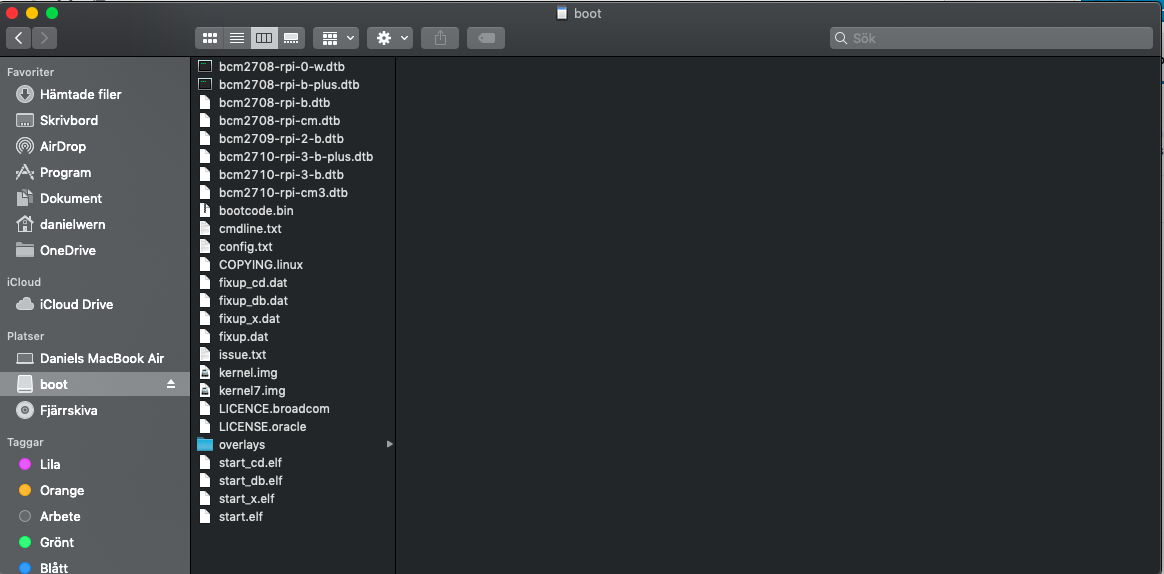
In the boot folder you should create a new file called wpa_supplicant.conf. If you are on Mac, like me, you can create a new file with following command.
touch /Volumes/boot/wpa_supplicant.conf
The file should look like this:
country=US
ctrl_interface=DIR=/var/run/wpa_supplicant GROUP=netdev
update_config=1
network={
ssid="your_wifi_ssid"
scan_ssid=1
psk="your_wifi_password"
key_mgmt=WPA-PSK
}
SSH
SSH is convenient way of accessing your Raspberry Pi remotely from your computer. It can be enabled by just creating an empty file called ssh in the boot folder your sd-card.
When you have created both the wpa_supplicant.conf and the ssh files in to the boot folder. All you need to do is plug the sd card into the Raspberry Pi and start it up. You should now be able to connect to it through ssh. But how do i find its ip address? On newer Raspberry Pi you do not need to find that out. It answers to rasberry.local
You should be able to connect to the Raspberry Pi. Open your terminal and write the following.
# ssh pi@raspberrypi.local

User is "pi" and password is by default "raspberry"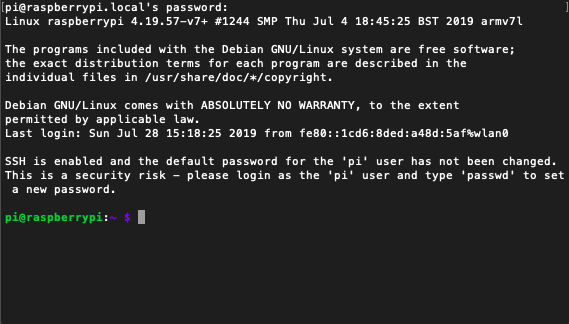
Still cant connect?
If you cannot connect to the Raspberry Pi using ”ssh raspberrypi.local”, you can try to find out its ip address and use that instead. You find the ip address of Raspberry Pi through your routers ”DHCP lease allocation table”. Go to your router in your browser. Log in and look up ip addresses connected, and you should be able to see the ip address of the Raspberry Pi.
You can then instead connect to Raspberry pi using
# ssh pi@192.168.0.32
My device list in the router UI looks like this

 Learn Raspberry Pi
[…] Wifi and SSH tutorial https://learnraspberrypi.home.blog/2019/07/28/headless-raspberry-pi-setup-wifi/ […]
GillaGilla