Java is one of the most popular in the world and it is available for the Raspberry Pi, if you choose the right operating system.
In this tutorial you will learn how to install Java 11 on the Raspberry Pi and run Hello World.
To be able to do this tutorial your Raspberry Pi needs to have an operating system and also needs Wifi and SSH needs to be setup. If you have not done that, I recommend these tutorials first.
How to install an operating system on Raspberry Pi (Rasbian)
https://www.raspberrypi.org/documentation/installation/installing-images/
Wifi and SSH tutorial https://learnraspberrypi.home.blog/2019/07/28/headless-raspberry-pi-setup-wifi/
First of all I think it is always a good idea to have your Raspberry Pi up to date. You do that by running the following command in the terminal. (It will update and upgrade all the programs you currently have installed on your device. It will try to update quite a few libraries and programs and you need to enter yes when upgrading.)
# sudo apt-get update && apt-get upgrade

When everything is updated you want to install the Java packages. You do that by running the following command. (It will take some time, a lot of things are going to be installed.)
# sudo apt-get install openjdk-java11

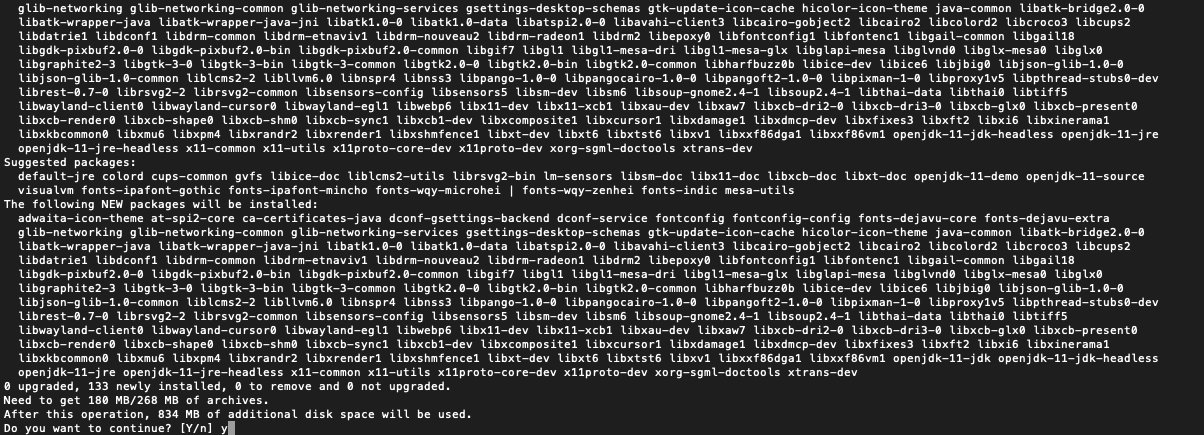
When the Raspberry Pi has installed the Java 11 packages you should be able to run ”java -version” and have the following output:

Also the java compiler should be present, try running ”javac –version” and you should have a similar printout like this:

You have now installed Java 11 on your Raspberry Pi! But how do we run a program? Let’s create a very simple program to demonstrate this. I am using a program called nano to write a very simple application, also known as ”Hello World”.
# nano HelloWorld.java
public class HelloWorld {
    public static void main(String[] args) {
        System.out.println("Hello, World");
    }
}
Ctrl + X and yes, to save and exit Nano.
We have now only the source code for the program. To be able to run the program you want to compile the program and that is what the program ”javac” is for. Run the following command to compile the Hello World program.
# javac HelloWorld.java
You should now be able to see a new file called HelloWorld.class appear in the same folder as HelloWorld.java. That is the compiled program for the HelloWorld.java.

You can now run your program using the following command.
# java HelloWorld

And there you go, you have now installed Java 11 and running your first java 11 application on your Raspberry Pi.
 Learn Raspberry Pi